Wix Dropshipping

Wix is one of the most popular website builders for entrepreneurs and small businesses, offering a simple drag-and-drop editor that lets anyone create a professional online store—no coding required. To simplify the dropshipping process, EPROLO sets up a Wix dropshipping app that integrates product sourcing, order management, and fulfillment all in one place.
1. Register and Set Up Your Wix Store

Before you can start dropshipping on Wix, you need to create and set up your Wix online store. Go to Wix and sign up using your email, Google, or Facebook account. Once logged in, Wix will guide you through a step-by-step setup process to build your store.

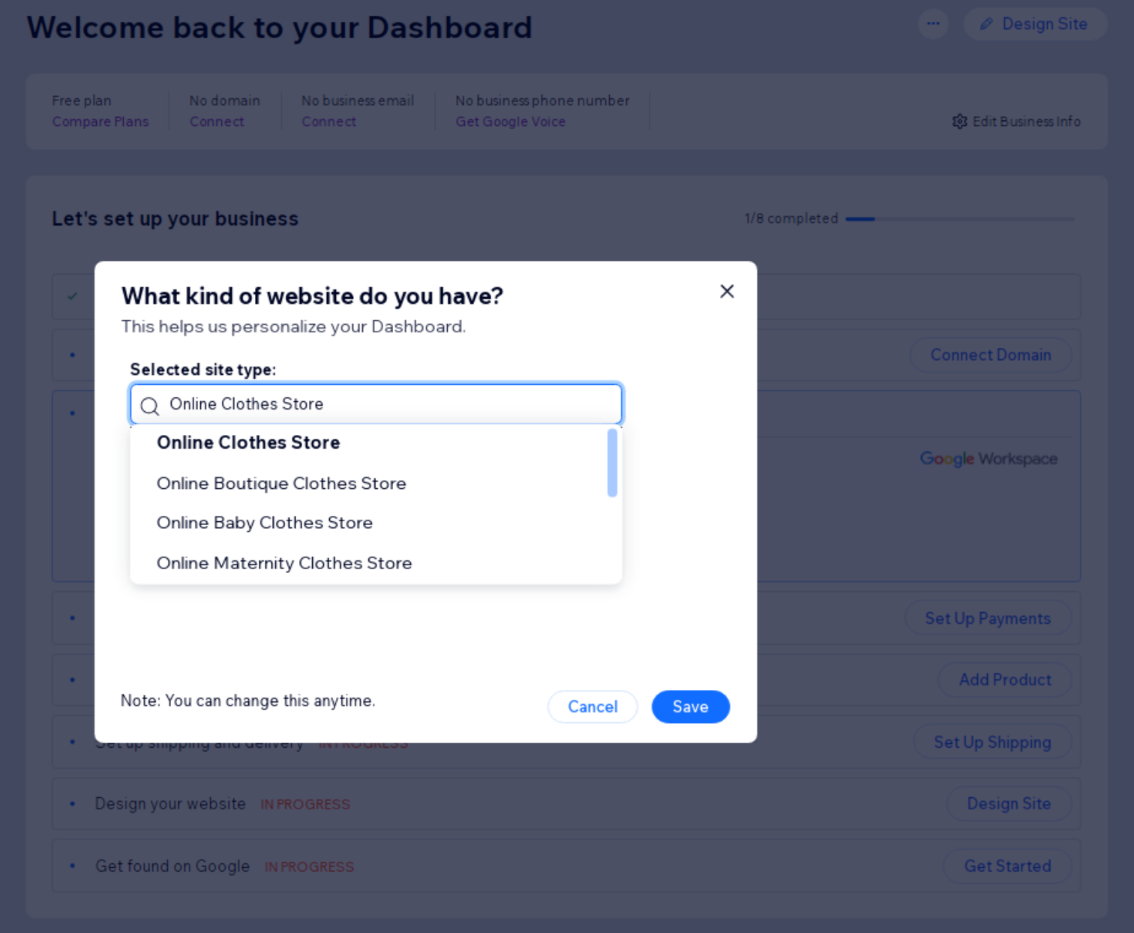
1.1 Update Your Site Type

Select the type of website you want to create—such as an online store, fashion boutique, or pet shop. Wix customizes your experience and templates based on your selection.

1.2 Connect a Custom Domain

Choose and connect a domain name for your store. You can start with a Wix-suggested domain or connect your own custom domain to make your site look professional and trustworthy.

1.3 Get a Custom Business Email

Create a business email that matches your domain (e.g., support@yourstore.com). This enhances brand credibility and makes communication with customers more professional.

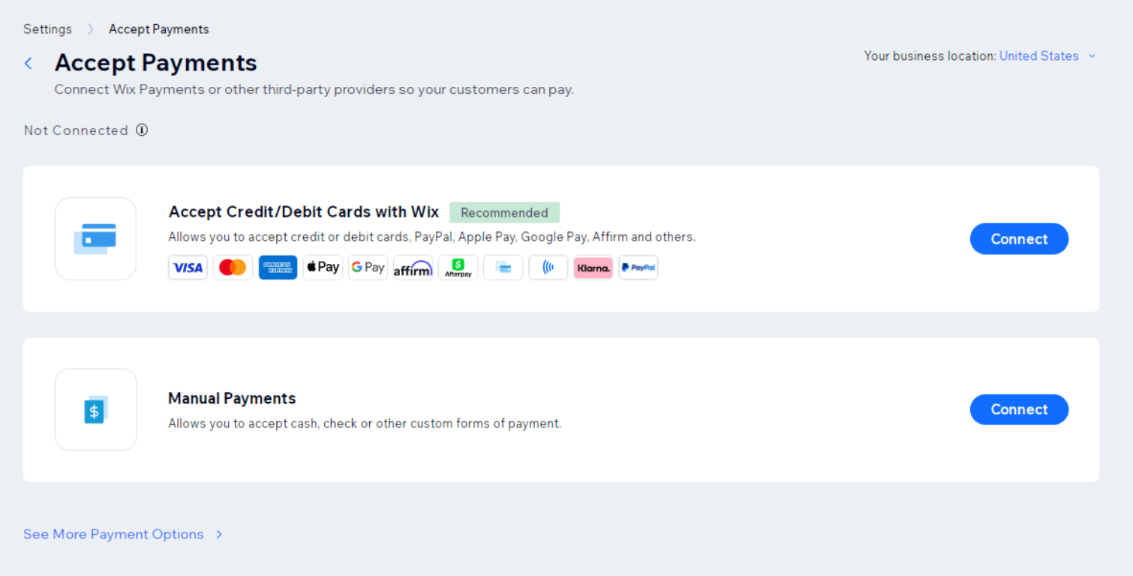
1.4 Set Up Your Payment Methods

Configure how you'll receive payments. Wix supports multiple payment options such as credit cards, PayPal, and local gateways depending on your region.

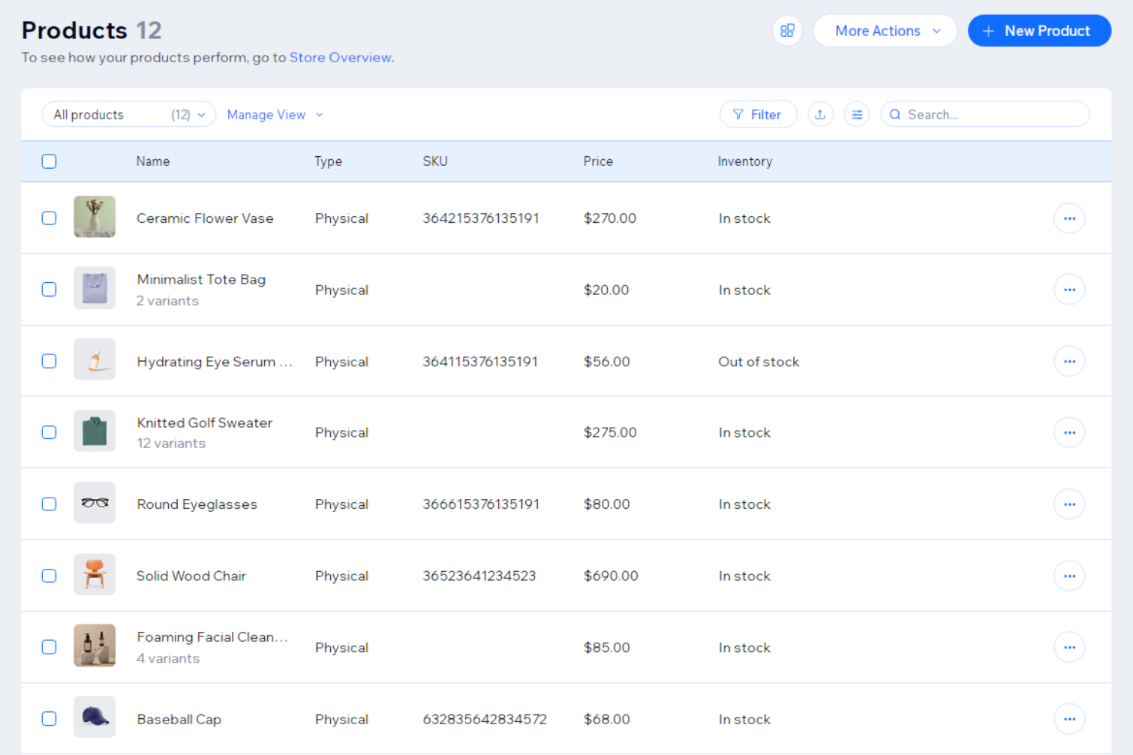
1.5 Add Your First Product

Add your first product manually to see how it appears in your storefront. Include essential details like product name, description, price, images, and stock information.

1.6 Set Up Shipping and Delivery

Define your shipping zones, rates, and delivery methods. You can offer free shipping, flat-rate options, or real-time carrier rates to suit your business model.

1.7 Design Your Website

Customize your store using Wix's intuitive drag-and-drop editor. You can choose from Wix’s templates, edit colors and fonts, and add product banners or featured sections to showcase your products.

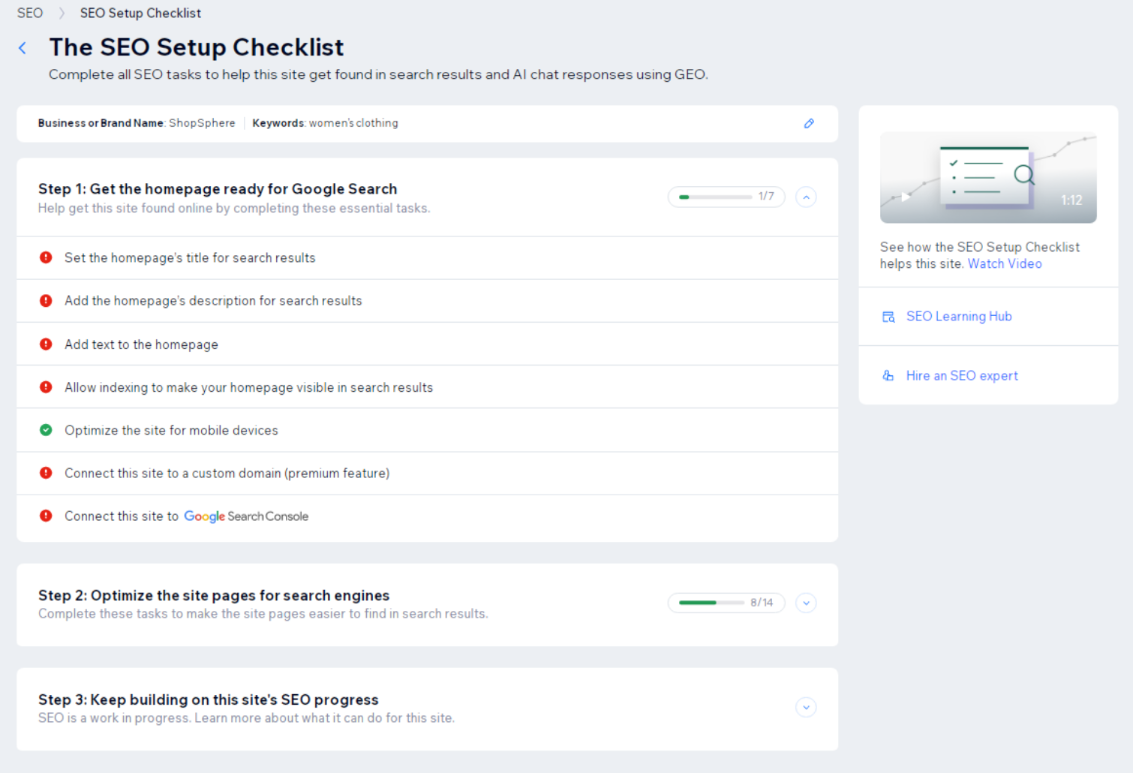
1.8 Get Found on Google

Optimize your site for search engines using Wix's built-in SEO tools. Add keywords, meta titles, and descriptions to help your store appear in Google search results.

Completing these setup steps ensures your Wix store is optimized, functional, and ready to sell products online. Once everything looks good, upgrade to a paid Wix plan to enable ecommerce features and start accepting payments.

2. Install the EPROLO App from the Wix App Market

After setting up your store, it's time to install the EPROLO dropshipping app from the Wix App Market.

On your Wix dashboard, go to Apps > App Market, search for “EPROLO,” and click “Add to Site.” Review the requested permissions—which allow EPROLO to access your products, orders, store data, and so on—then click “Agree & Add.”

If you already have an EPROLO account, connect it directly. If not, register a free account to complete the integration. Once installed, the EPROLO app will appear in your Wix dashboard, enabling you to manage product imports, order fulfillment, and shipping automation all in one place.

3. Import Products to Your Store

Now that your EPROLO app is connected, you can start importing products to your Wix store. From your EPROLO dashboard, go to “Find Products” and browse the product catalog to discover thousands of trending items. You can search by keyword or image or explore the Hot-selling section for product inspiration, and add the products you want by clicking "Add to Import List".

If you can't find the exact product you're looking for, EPROLO's Product Sourcing Service can help. The sourcing team, with years of experience, can locate reliable suppliers and source custom products for your niche.

EPROLO also offers a Chrome extension— EPROLO - AliExpress Product Importer. This extension lets you import items directly from AliExpress. Install the extension, log in to your EPROLO account, and browse AliExpress. When you find a product you like, click the “EPROLO icon” to add it to your account.

After importing, review your “Import List” to edit product details such as titles, descriptions, images, variants, and pricing to align with your brand. Once satisfied, click “Push to Store” to instantly sync the products to your Wix shop, complete with images, pricing, and inventory.

4. Start Selling Online

With your products added, your Wix dropshipping store is ready to sell. Start marketing your products through social media, SEO, and email campaigns. Once customers visit your store, they can place orders and make payments directly on your site.

The best part of dropshipping is that you don't need to manage inventory or shipping. EPROLO and its trusted suppliers handle product storage, packaging, and delivery, allowing you to focus on growing traffic and sales.

5. Manage Orders and Fulfillment

When customers place orders in your Wix store, it will automatically sync to your EPROLO dashboard. This eliminates the need for manual order entry and reduces human error.

To fulfill an order, go to your “Orders” page in EPROLO, review the details, and click “Fulfill at EPROLO.” Complete payment via PayPal or credit card, and EPROLO will handle packaging and shipping directly to your customers. All products are shipped from our warehouses, with multiple shipping options available.

You can also enhance your brand image with our branding service. EPROLO offers multiple branding options such as custom labels, packaging, and tapes—all without any third-party information appearing on your parcels. This ensures a professional and consistent brand experience for your customers.

6. Track Shipments and Order Updates

After the order ships, EPROLO automatically updates the tracking number and shipping status in your Wix store in 24-48 hours. Both you and your customers can track delivery progress in real time.

You can view all order statuses in your EPROLO dashboard, while customers can track shipments directly from their order pages. This transparency improves the overall customer experience and builds trust.

With automated order tracking, fulfillment, and delivery updates, EPROLO ensures a smooth, reliable, and efficient dropshipping workflow on Wix.

FAQs
连接非常简单。登录您的EPROLO仪表板,转到"添加商店",然后选择Wix图标。您将被重定向到Wix应用市场以授权此集成。连接成功后,您可以立即开始导入产品和同步订单。
是的。当客户在您的Wix网站购买产品后,订单详情会自动发送到您的EPROLO账户。在您于EPROLO完成商品付款后,我们的团队将接手采购、质量控制和发货流程。
是的,EPROLO具备完整的跟踪信息同步功能。一旦我们的仓库发出包裹,跟踪号会自动更新到您的Wix仪表板。这将触发Wix向您的客户发送自动发货邮件,提供专业且透明的体验。
完全可以。在将产品从EPROLO推送到Wix之前,您可以使用"导入列表"来编辑标题、为SEO重写描述,并选择要展示哪些高质量图片。这确保您的产品符合您Wix网站的独特美学。
当然可以。如果您在AliExpress或其他平台上找到了想要在Wix上销售的产品,可以向EPROLO团队提交采购请求。我们将找到该产品,协商价格,并将其添加到您的仪表板,以便您一键将其导入商店。
要使用代发货服务和像EPROLO这样的第三方应用,您的Wix网站必须订阅支持商务和电商功能的计划。这样您才能接受在线支付,并启用自动订单同步所需的API连接。